If you run a city, you have probably wanted a bench in a different spot, a TV on a wall, or a safe in the back room of a shop. Doing that through map files means a desktop editor and a lot of patience. Doing it with a quick script often ends the same way: it looks good until the next restart, and then it is gone.
This guide shows how to place props in game, save them to your database and have them come back every time. We use rr-propplacer, which works on Qbox and QBCore.
Why props disappear after a restart
A prop spawned by a script exists only in the game's memory. When the resource or the server restarts, that memory is cleared, and nothing told the server to remember it.
To survive a restart a prop needs three things: a saved record (model, position and rotation in a database table), a script that reads the table and spawns each prop again on start, and sensible spawning, so hundreds of props are not all loaded for everyone at once. rr-propplacer does all three. Every prop is a row in placed_props, and props stream in and out by distance.
Step 1: Install
You need ox_lib, oxmysql, ox_target and either qbx_core or qb-core. Put the rr-propplacer folder in your resources and add the ensure line after those four:
ensure ox_lib
ensure oxmysql
ensure ox_target
ensure qbx_core
ensure rr-propplacer
Start the server. The tables placed_props and removed_props are created for you. Then reconnect once, so your game downloads the dashboard files.
If you are coming from qb-propplacer: the folder was renamed to rr-propplacer; your tables carry over.
Admins can use it straight away, because the resource gives the admin group the ace command.propplacer. To let another group in, add add_ace group.moderator command.propplacer allow to your server.cfg.
Step 2: Open the dashboard and pick a prop
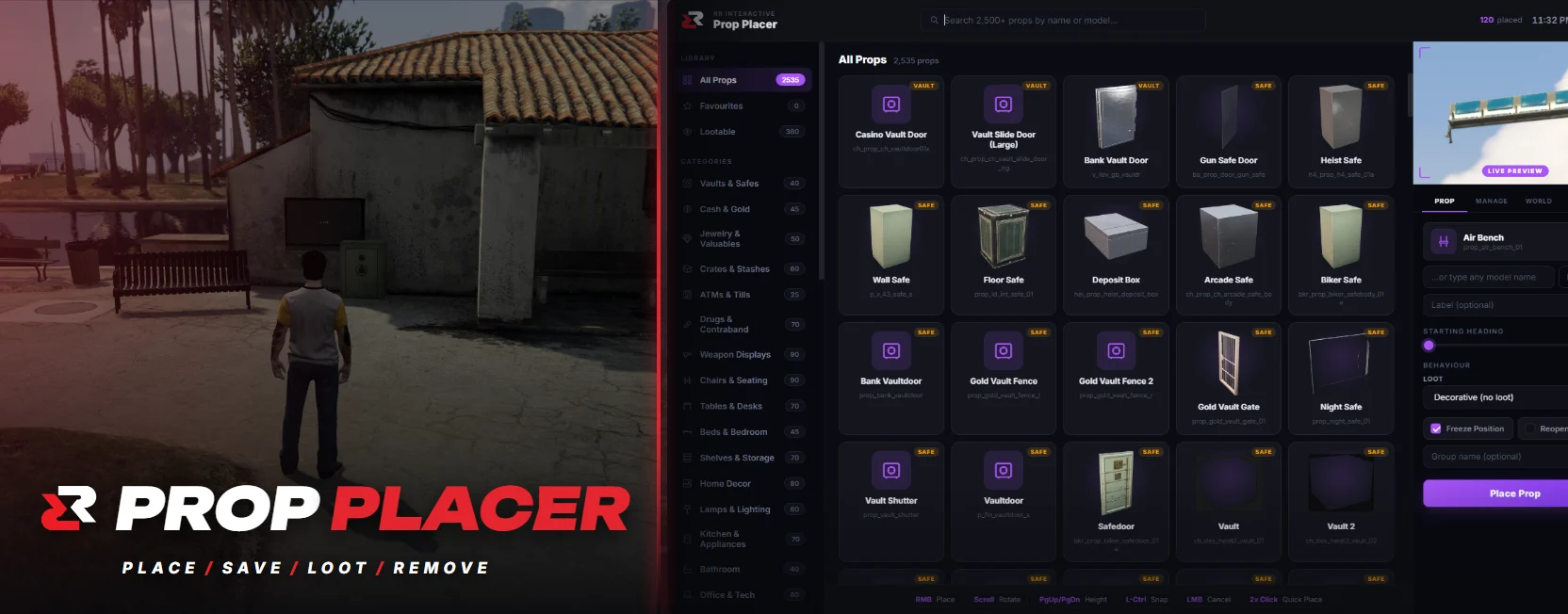
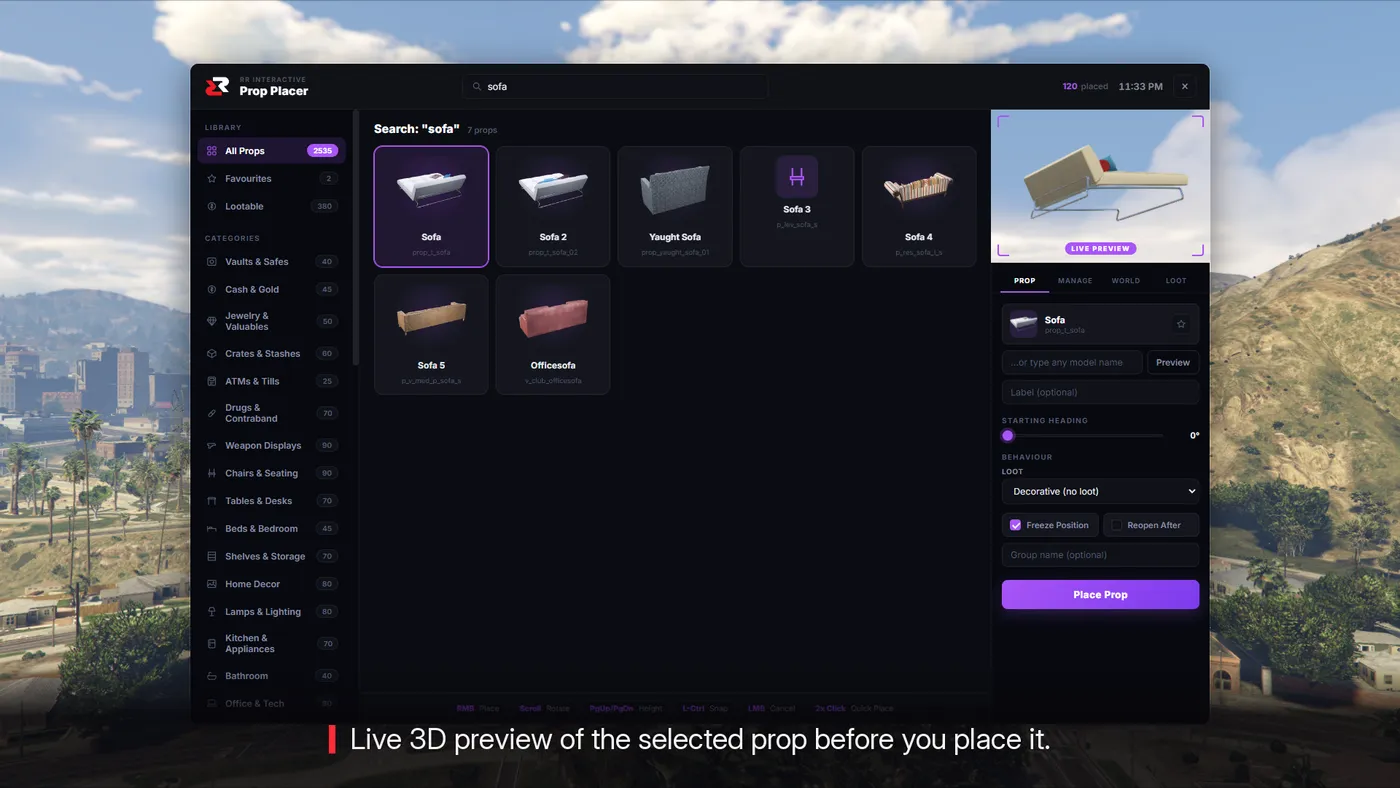
Type /propplacer. The dashboard lists more than 2,500 props in 37 categories. Search by name, star the ones you use often, and use Recently Used to get back to what you placed an hour ago. Click a prop for a live 3D preview you can turn around, which saves a lot of guessing. Many prop names do not tell you what the object looks like.
Step 3: Place it
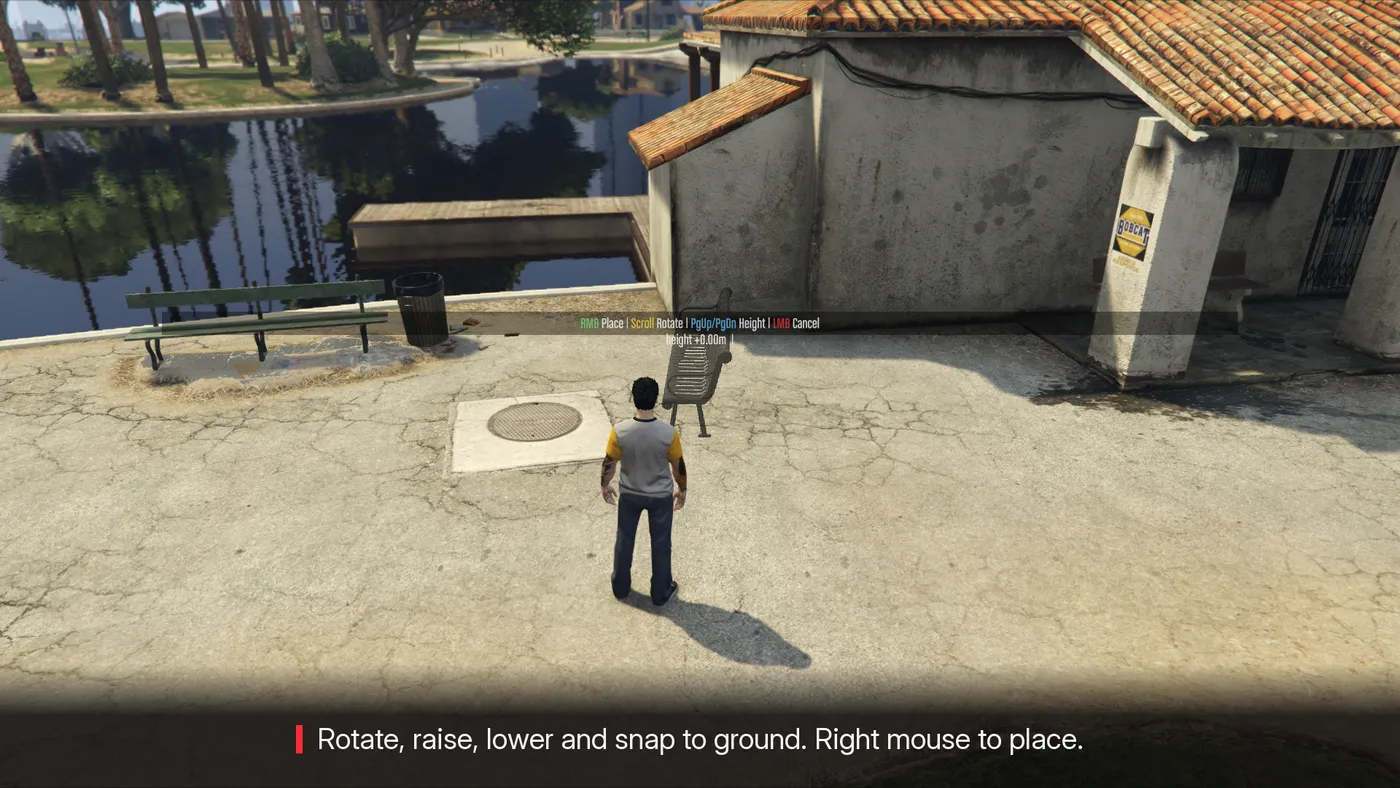
Aim where you want it. A preview follows your aim, and these keys do the work:
| Key | Action |
|---|---|
| Right mouse | Place |
| Left mouse | Cancel |
| Scroll | Rotate |
| PgUp / PgDn (hold) | Raise / lower, Shift for faster |
| Shift + Scroll | Fine height nudge |
| Left Ctrl | Toggle ground snap |
Press right mouse and the prop is placed and saved. Walk away, come back, and it is still there. Restart the resource and it is still there.
Step 4: Mount things on walls
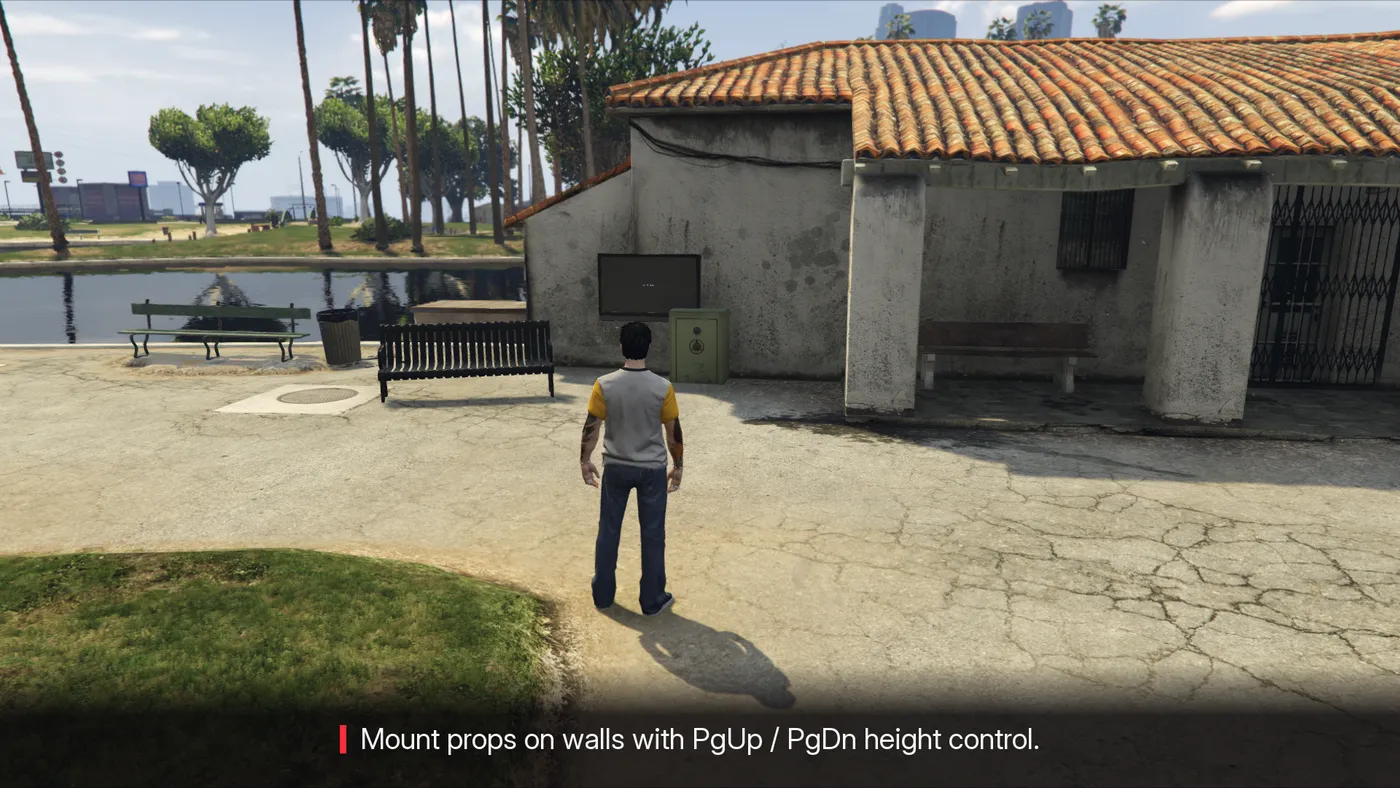
Ground snap keeps a prop on the floor wherever you aim. As soon as you use a height key, snap switches off, and that is how you get a prop onto a wall.
For a flat TV: aim at the wall, hold PgUp until it is at the height you want, scroll to rotate until it sits flat, then place it. Use Shift + Scroll for small nudges. If you go too far, Left Ctrl snaps it back to the ground.
Step 5: Fix mistakes in the Manage tab
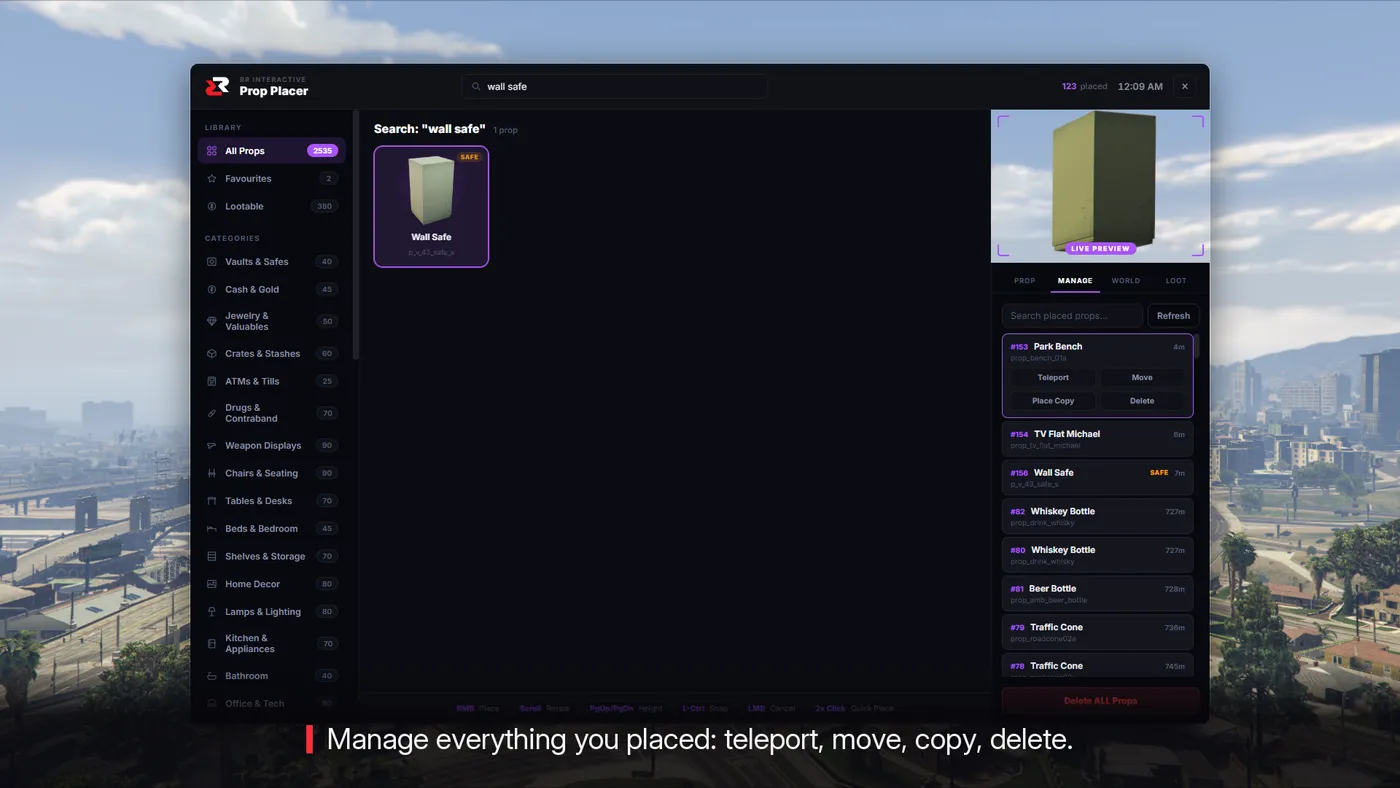
Everything you place appears in the Manage tab. You can teleport to a prop, move it, place a copy or delete it. Copy is the quick way to build a row of the same bench or a stack of crates.
Step 6: Make a prop lootable
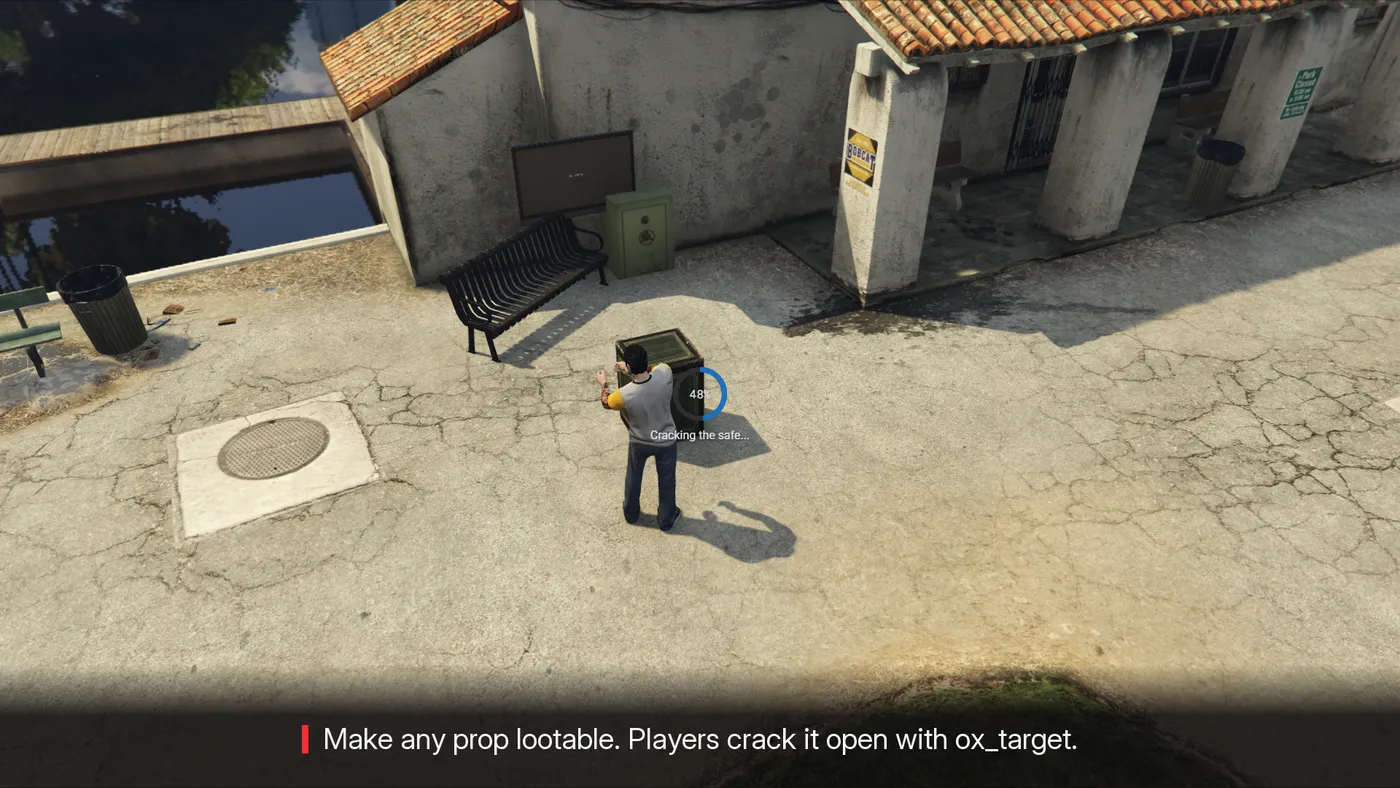
When you place a prop, pick a loot type from the dropdown, for example safe. Players then see an ox_target eye on it, a progress bar runs, and the server decides the reward. The server checks the distance, and each prop has its own cooldown that survives restarts, so restarting does not refill every safe.
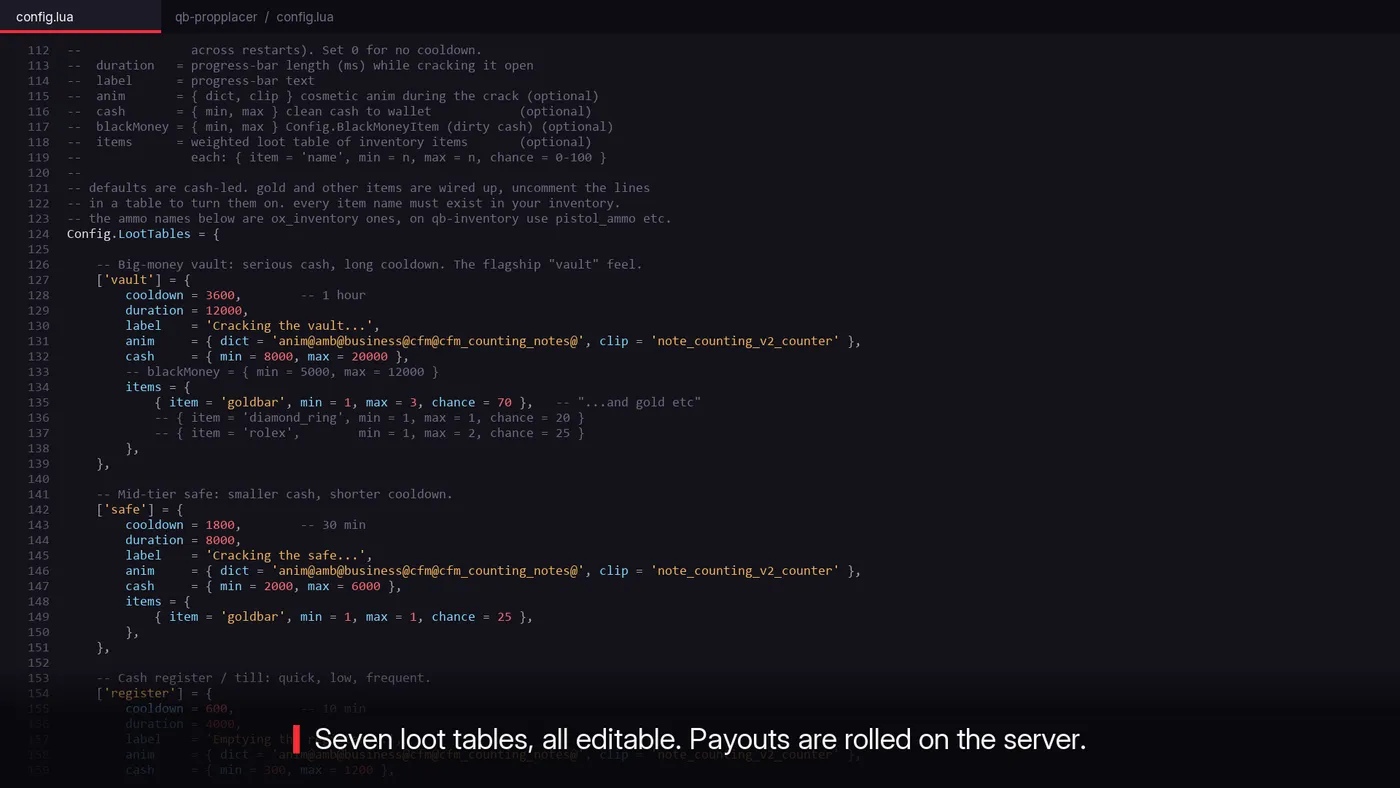
Seven loot tables ship with it: vault, safe, register, stash, jewelry, drugstash and gunstash. Cash ranges, items, chances and cooldowns are all in config.lua. Item names must exist in your inventory.
One setting matters on QBCore. Dirty money uses the item in Config.BlackMoneyItem, which is black_money by default. Most qb-core servers use markedbills:
Config.BlackMoneyItem = 'markedbills'Step 7: Remove props you do not want
Sometimes the problem is a prop already on the map, like a bench in the middle of your new plaza. Choose Remove World Prop, aim at it, scroll to set a small radius and press right mouse. It disappears for every player and stays gone after restarts. Bring it back from the World tab with Restore.
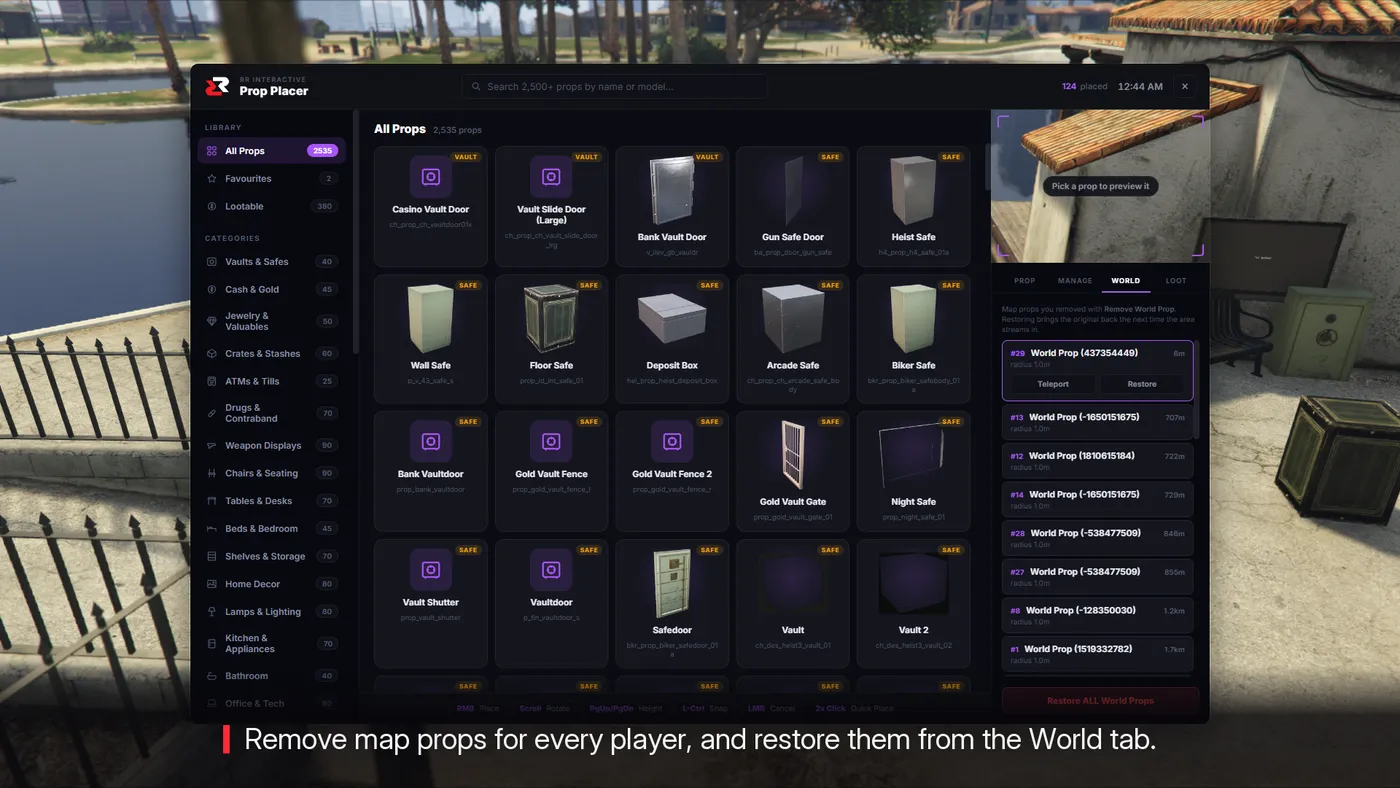
Keep the radius small, because a hide covers every copy of that model inside it. Props that are part of a building's interior model cannot be removed this way, since they are not separate objects. Those need a map file edit.
Will lots of props slow my server?
Props only exist near players. They spawn within 150 units by default and go away when everyone leaves, and you can change that in Config.RenderDistance. A street of 50 props costs nothing when nobody is on it.
Get it
rr-propplacer is $12.99 for Qbox and QBCore. If a prop does not show, or you want to add your own models to catalog.lua, the full setup page covers it.